Getting started
From installation to your first dubbed video
Klarsono is an extension: a small add-on for your browser, on a computer. Four steps, and the video you are watching speaks your language.
What is an extension?
A small program you add to your browser (Chrome, Firefox, Brave or Edge) to teach it something new. This one teaches it to dub videos. It does not install on a phone, and it comes off as easily as it goes on.
- 01
Add Klarsono to your browser
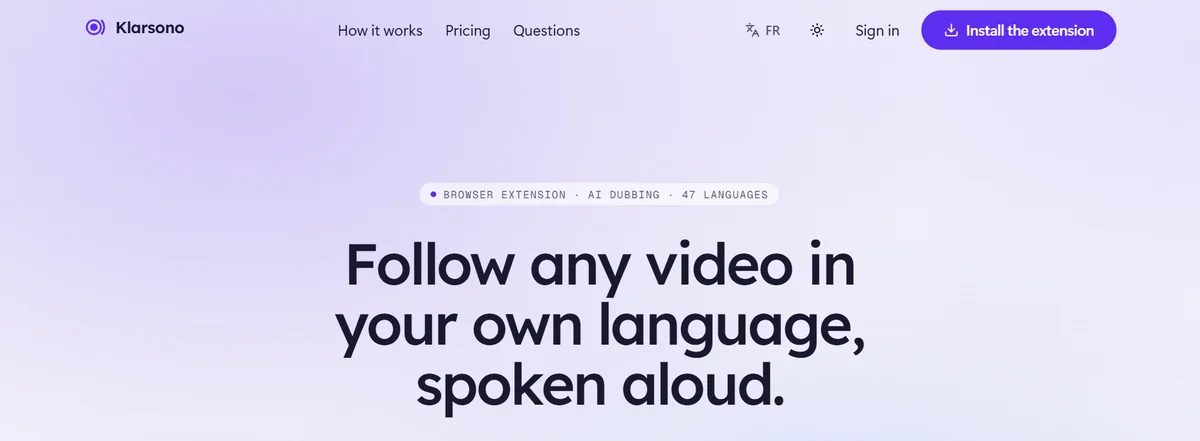
On klarsono.com, click “Install the extension” at the top right, or your browser’s button just below: Klarsono’s page opens in the extension store.
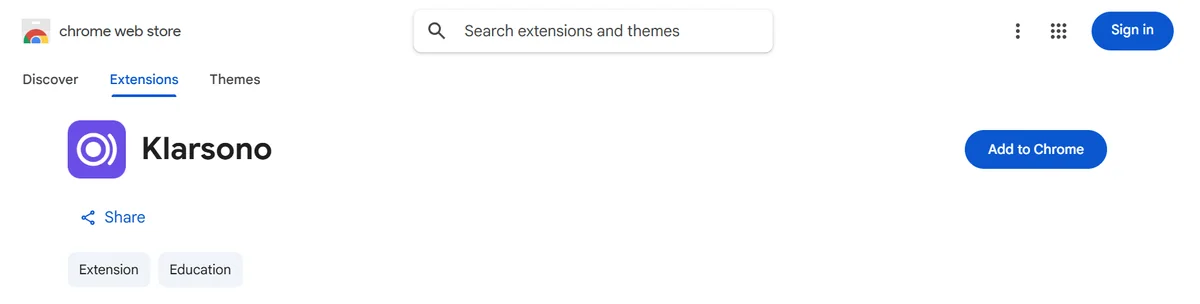
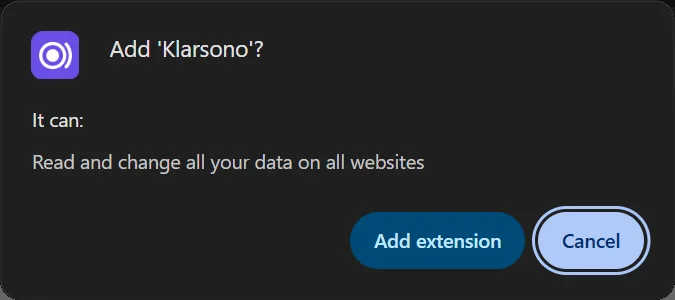
Click the add button, then confirm when your browser asks. On Chrome: “Add to Chrome”, then “Add extension”. It is free.
- The confirmation window warns that the extension can “Read and change all your data on all websites”: that is because a video player can be on any site. Klarsono only reads that player.
- 02Recommended
Pin it next to the address bar
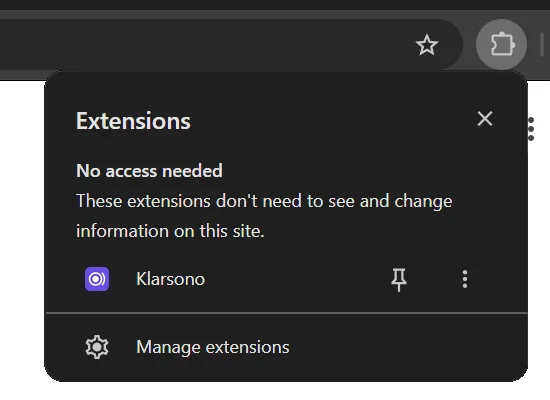
Your browser tucks new extensions away behind the jigsaw-piece icon, top right. Click it, then the pin next to Klarsono: its icon stays in view.
That is where your settings live, and how you will dub a video that has no subtitles.
- On Firefox: the cog next to Klarsono, then “Pin to Toolbar”. On Edge: the eye next to Klarsono.
- 03
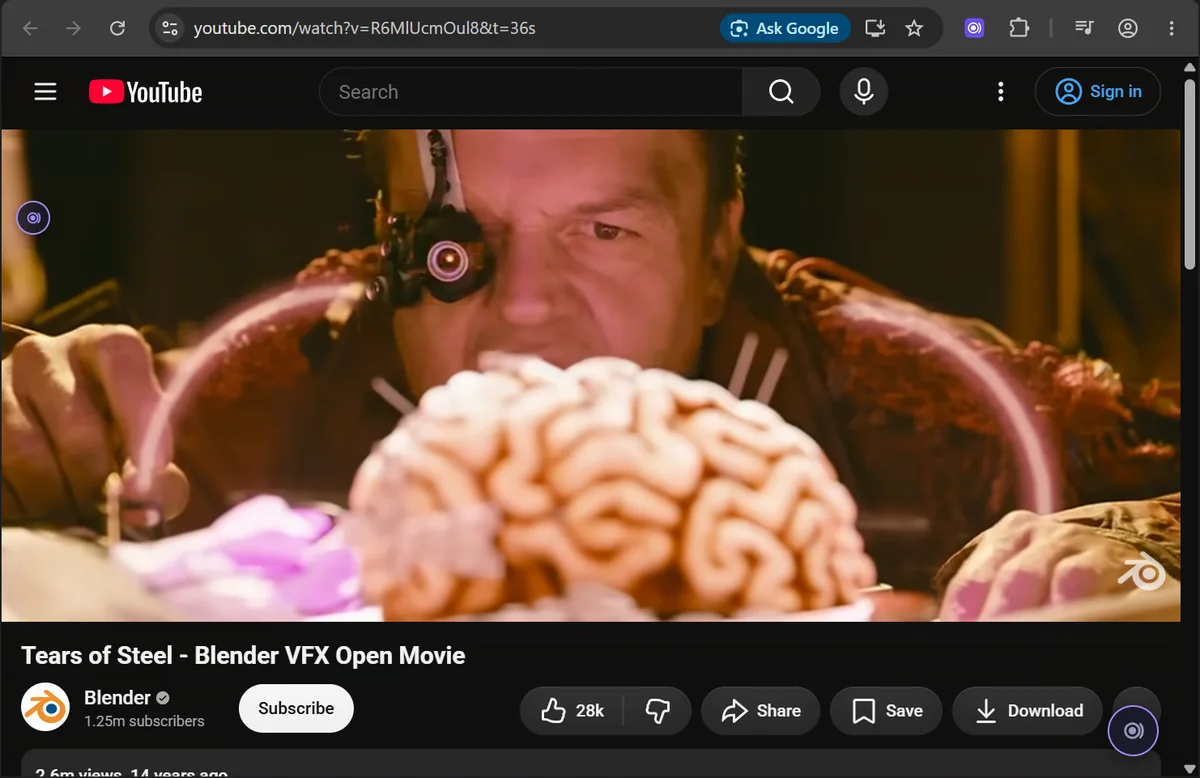
Open a video, click the Klarsono button
Play a video on YouTube, Udemy, Coursera or almost any other site. A dark round button with the Klarsono logo appears at the bottom right of the screen; its outline turns purple when the video has subtitles.
Click it: the Klarsono panel opens.
- The button fades out during playback: move the mouse to bring it back.
- Was the video already open before you installed Klarsono? Reload the page.
- 04
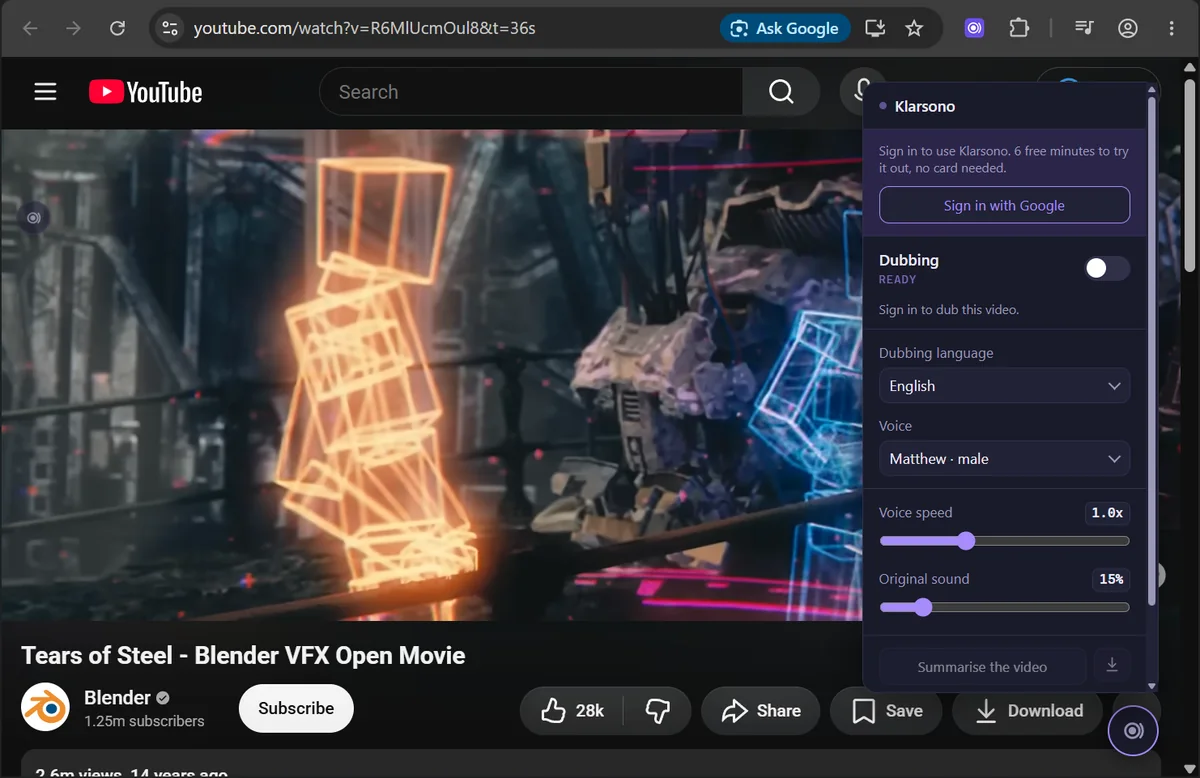
Sign in, then turn on “Dubbing”
The first time, the panel asks you to sign in: click “Sign in with Google”, then, in the Google window that opens, choose your account or enter your email address. No password to create, no card needed.
Then turn on “Dubbing”. The dubbing language is your browser’s, and you can change it just below.
You get 6 minutes of HD voice to try it out. Once they are used, your browser’s voice takes over on subtitled videos, free and without limit.




And the video speaks your language
“Dubbing” switches to “On”, and the line below confirms it:
“The voice is reading the translated subtitles.”
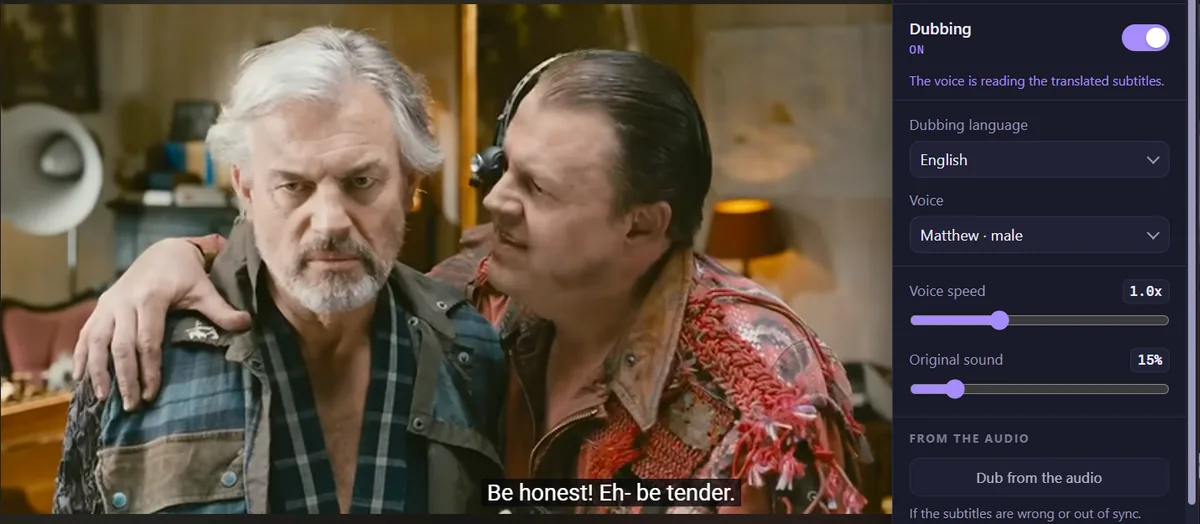
Images from the film Tears of Steel: Blender Foundation | mango.blender.org, licensed under CC BY 3.0.
And then
What you adjust while you watch
In the panel or from the icon, as often as you like, mid-video.
Dubbing language
47 languages to choose from. Your browser’s language by default.
Voice
Several voices per language. Switch while you listen, and keep the one you like.
Voice speed · Original sound
Speed the voice up or slow it down, and choose how much of the video’s own sound remains.
Dub from the audio
No subtitles? Click the Klarsono icon, then this button: it listens to the soundtrack and dubs it, a few seconds behind. Listening uses minutes.
Summarise the video
What was said, condensed and placed in time, so you can find a passage again.
If you get stuck
Questions from the first few minutes
I can’t see the Klarsono button.
Move the mouse: it fades out during playback. If the video was open before you installed Klarsono, reload the page. In full screen, the small badge at the top left of the video opens the panel instead.
I turned on “Dubbing”, but nothing speaks.
Read the line under the switch: it says what Klarsono can see. If it says the video has no subtitles, click the Klarsono icon, then “Dub from the audio”.
I’m on my phone.
Klarsono does not install on a phone: it needs Chrome, Firefox, Brave or Edge, on a computer (PC or Mac). Open this page on your computer.
What about Zoom, Google Meet or Teams?
No: those are live calls, not videos you play. Klarsono dubs what plays in a video player.
How do I remove Klarsono?
Right-click its icon, then the remove option your browser offers. Your account is deleted separately, from your account area.
Another question? [email protected] — we reply.
Ready to try it?
Choose your browser: your next video will speak your language.